System Overview and Capacity Management

System Overview and Capacity Management
This section introduces you to VAST Data’s intuitive interface and powerful capacity management tools, providing visibility into how your storage resources are being utilized.

Prerequisites
Before beginning this lab, please ensure you have a Cosmos Community account, as it’s needed to proceed and access the lab environment.
Access the VAST Management System GUI
Access The VAST Data Lab Environment
Go to this URL portal.thecosmoslabs.com or click the button below:
Make sure you’re logged in with your Cosmos community account.
VAST Data lab environment login page
Click “Launch Lab Environment”. You might need to allow popups for the site, so if nothing happens, make sure you do so.
Upon entering the lab environment, click to accept the end user agreement.
At the login screen use the credentials provided.

1. Get Oriented
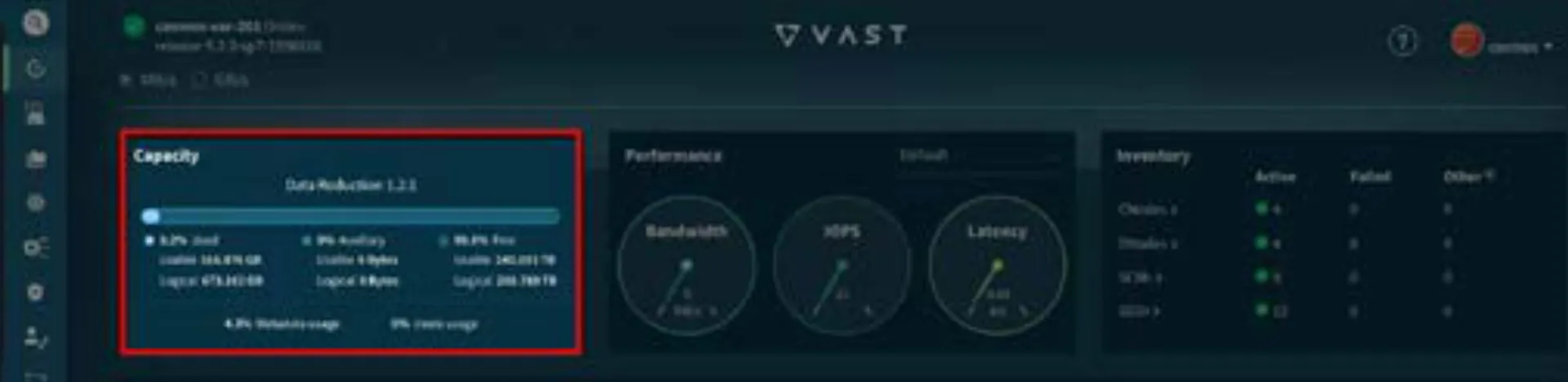
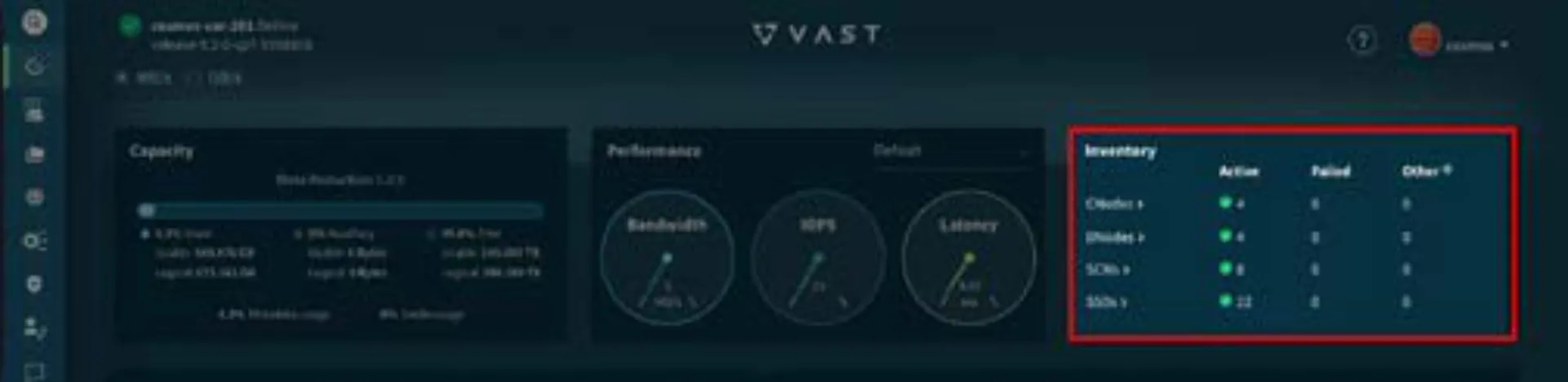
Why this matters
The VMS main dashboard serves as your central command center for the VAST Data platform. Understanding this interface allows storage administrators to quickly assess system health and capacity at a glance without having to run complex queries or reports.
2. Exploring the Capacity Estimator
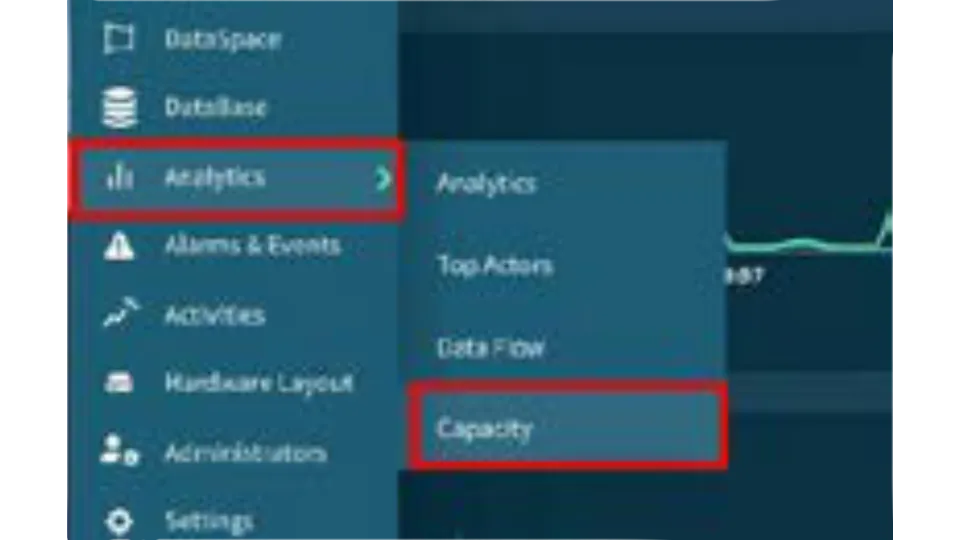
Use the left-hand navigation to access the Capacity section of the VAST Management System GUI.
Exercise 1: Navigate the directory structure
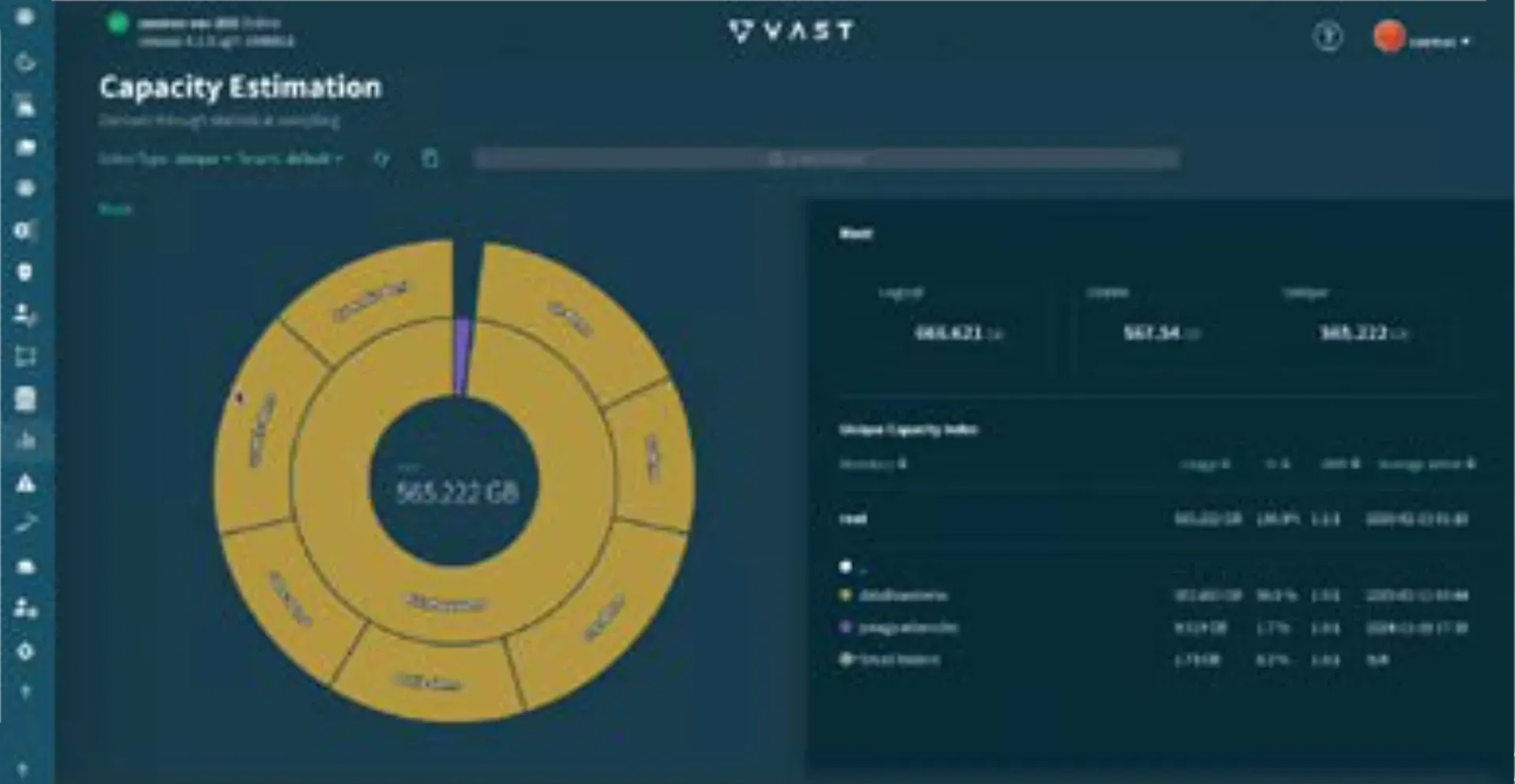
Starting at the root directory (/), you'll see all top-level directories
Click on any directory to descend into it and view its usage
Notice how capacity metrics are recalculated at each level, providing granular visibility
The breadcrumb trail at the top helps you track your location in the directory hierarchy
Exercise 2: Use direct path entry to examine specific directories
Locate the path entry field at the top of the interface
Enter:
/dataflowdemo/Press Enter or click the navigation button
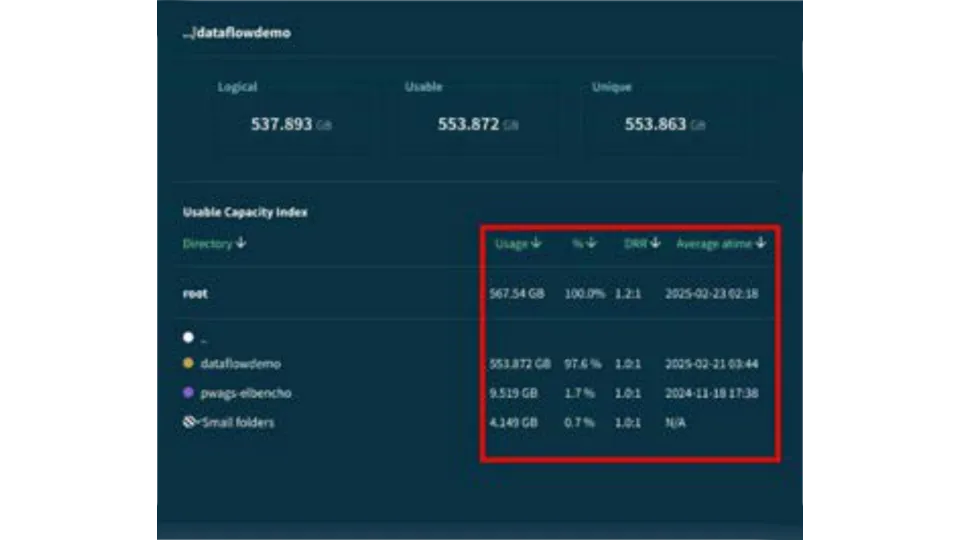
Observe the detailed breakdown of storage utilization for the demo environment
Pay special attention to how the usage is categorized and the efficiency metrics displayed
Key Learning Points
Understanding DRR (Data Reduction Ratio) metrics per directory: DRR represents how effectively VAST Data is using similarity reduction on your data. A higher ratio indicates better storage efficiency. The per-directory visibility allows you to identify which data types are most efficiently stored and which might benefit from different data organization strategies. For more real-world examples you can read our blog post about similarity reduction.
Differentiating between capacity classifications:
Logical: The amount of raw data as seen by applications and users before any data reduction
Usable: The actual physical capacity consumed after all data reduction technologies have been applied
Unique: Estimated amount of space that would be reclaimed if the folder was deleted
Why this matters
Traditional storage systems often provide only system-wide capacity metrics, making it difficult to identify which departments, projects, or data types are consuming resources. VAST Data’s directory-level visibility enables targeted optimization efforts and more accurate capacity planning.